Feedback that fits your hands
Understand DualSense effects, tune resistance and vibration, and keep custom button assignments readable. Good settings serve the player.
Triggers feel too demanding?
Try a reversible system adjustment, record the original level and compare one change at a time.
Find the next action ↗What features are confirmed?
Separate announced feedback, audio and access features from game menus or performance numbers that need their own evidence.
Find the next action ↗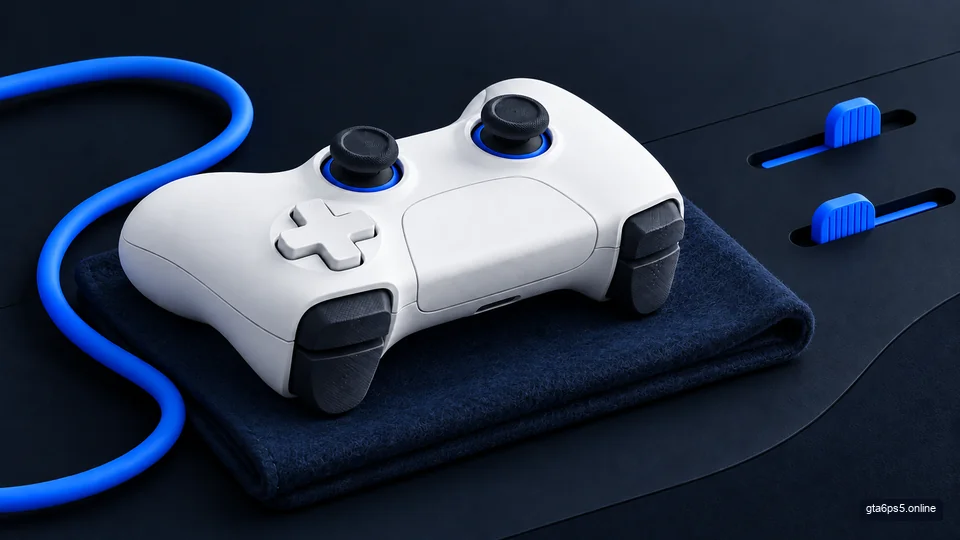
GTA 6 DualSense settings: a comfortable PS5 controller setup
Set up your DualSense for GTA 6 with comfortable triggers, vibration, sound and button assignments. Includes connection checks and ways to undo changes.
Open the guide ↗Start with one change you can feel
Use a short session with the same game and controller to establish your normal comfort. Change vibration or trigger resistance by one step, compare the result and write down the setting you want to keep. Smaller, reversible changes make the cause clear.
Check controller speaker volume separately from the main audio output. An effect that is comfortable through headphones may feel intrusive through the controller in a quiet room.
Make button changes readable
PS5 accessibility settings can change button assignments at the system level. A game can still display its original button prompts. Keep a simple old-button to new-button note so that a remapped input does not become a guessing exercise.
When another person uses the console, explain the active assignment and how to restore the familiar layout. A controller configuration should support the player’s hands and understanding at the same time.
Keep the details clear
GTA 6 DualSense settings: a comfortable PS5 controller setup
Set up your DualSense for GTA 6 with comfortable triggers, vibration, sound and button assignments. Includes connection checks and ways to undo changes.
Read guide ↗GTA 6 PS5 features confirmed: DualSense, 3D audio and PS5 Pro
See which GTA 6 PS5 features Sony has confirmed, what offline play and Remote Play mean, and how to prepare without guessing graphics modes or frame rates.
Read guide ↗Keep the check with your console.
Use your saved sheet as a second screen. Mark the completed checks and leave yourself an action you can follow.
Open my launch desk ↗