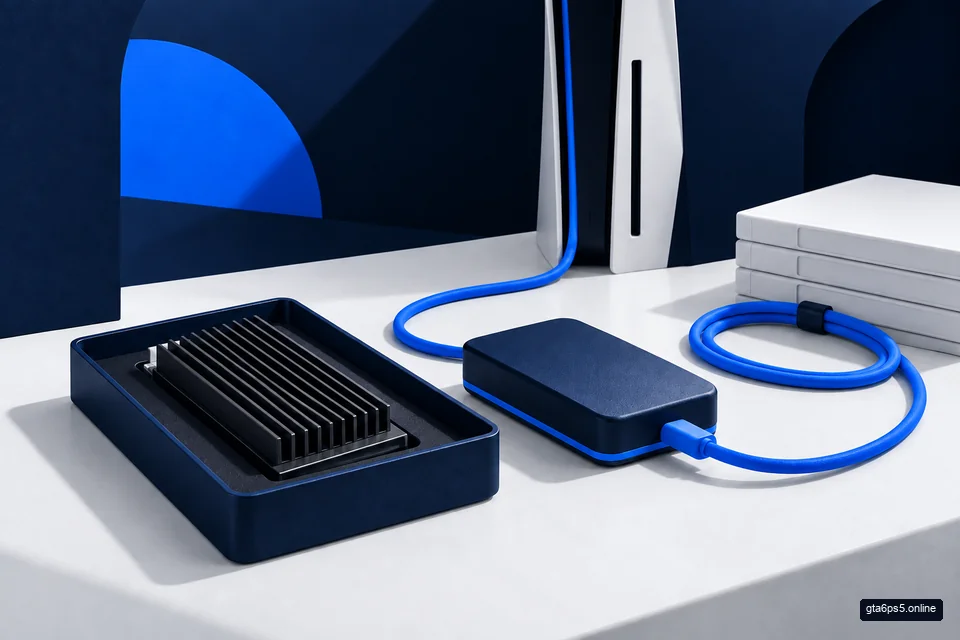
You can remove a PS5 game’s installation without deleting its saved progress. The important part is choosing the installation in Games and Apps, rather than choosing files in Saved Data. Before making room for GTA VI, decide which game files you can replace and leave the progress you care about alone.
You do not need to reset the PS5, clear every game, or buy an SSD before checking what is actually using the space. A short look through your storage can reveal a much cheaper answer: one finished game you can remove, an old installation you can move, or a collection of videos you already copied elsewhere.
This guide helps you choose that answer and check the result. If you are replacing the whole console, protect your progress with the save-transfer guide as a separate job.
Know which thing you are removing
Think of an installation as the game itself and a save as your place in that game. The licence is the account’s right to access it. They work together, but they answer different questions.
| What you are looking at | What it means | What to decide |
|---|---|---|
| Game installation | Files needed to run the game | Can I remove these and get them again later? |
| Saved data | Recorded progress and related game data | Is this the progress I want to keep? |
| Screenshots and videos | Moments you captured | Is there another copy of anything important? |
| Game licence | Access attached to the purchase or other entitlement | Which account provides this access? |
Deleting a large installation is therefore a different choice from starting a game again. Still, read the screen before confirming. A familiar title can appear in more than one part of Settings, so recognizing its name is not enough. Check the heading above it.
Also ask how you would get the game back. A purchased download, a game accessed through a subscription, and an old disc game can have different access conditions. Do not delete the only convenient installation of something you plan to use tomorrow without thinking about that return trip.
Check the drive that needs the space
Open Settings > Storage. Choose the storage location you intend to use and note its free space. For the built-in drive, the installation list is under Console Storage > Games and Apps. Sony also lets you manage parts of some games when Customize appears beside them.
Use the number the console reports. The capacity printed on the PS5 box or SSD packaging describes the whole drive, not the space left for your next installation.
If you have several drives, write the location next to the number: “console: 110 GB free” is useful; “110 GB free” can become confusing when a download is aimed at another drive.
For GTA VI’s requirement, use the actual product or download information when supplied. Do not make a purchase decision from a fan estimate or a screenshot whose platform, edition and date you cannot check. The game’s size is not established by the fact that it comes in a box or by the length of its trailer.
The launch desk storage calculator can keep your free-space figure and chosen spare room together. Leave an unknown requirement blank. A calculation is only as good as the numbers you give it.
Choose what to remove by the cost of getting it back
Sorting by size is a helpful start, but the biggest item is not always the best one to remove. Weigh space against inconvenience.
Imagine you have three options. One large game is finished and easy to download again. A smaller game is the one your family uses every evening. A third game takes a long time to replace on your connection. The finished game may be the clear choice even though the other two also occupy space.
Before selecting anything, ask:
- Will someone in the household play this soon?
- Would getting it back require a long download or use a limited data allowance?
- Do I still have the account, disc or subscription access needed?
- Can I move it to a drive I already own instead?
Choose one clear candidate first. Remove or move it, then inspect the space again. This is easier to follow than selecting a dozen titles and later wondering which change mattered.
If someone else uses the PS5, check with them before clearing their regular games. Their save may remain safe, but an unexpected download before their next session is still an avoidable nuisance.
Delete an installation or move it to USB?
Deleting makes sense when you are comfortable downloading or reinstalling later. Moving makes sense when keeping the files nearby saves you time or internet use.
Sony allows PS5 installations to be held on USB extended storage, but they cannot run there. Copy them back to console storage or a compatible M.2 SSD when you want to play. PS4 games have different rules and can run from supported USB extended storage.
That makes USB useful as a shelf for games you are taking a break from. It does not add playable PS5 capacity. If your built-in drive is full when you want that archived game back, you must make room again.
To move a game, highlight it in Game Library, press Options, then choose Move Games and Apps and the appropriate destination. Let the operation finish. Follow the console’s safe-removal option before unplugging a drive while the PS5 is on.
For an unfamiliar USB drive, inspect its contents before any formatting prompt. Formatting erases what is on that drive. An old device containing family photos is not empty just because the PS5 does not show a game library on it.
A useful plan is to keep the games you actively play on playable storage and put occasional games on USB. Constantly moving your two favourite games back and forth may save a purchase, but it also creates a chore. Decide whether that chore is acceptable before spending money on an archive drive.
When an M.2 SSD is the better answer
A compatible M.2 SSD expands storage from which PS5 games can run. It is worth considering when your regular games already fill the built-in drive and you keep having to make the same space decision.
Sony specifies a PCIe Gen4x4 M.2 NVMe SSD, supported capacity from 250 GB to 8 TB, and effective cooling. It recommends sequential read speed of 5,500 MB/s or faster. An M.2 SATA drive is not supported. The drive and its cooling parts must also fit the stated dimensions.
You do not need to learn every storage term to shop sensibly. The useful question is: does this exact drive, with this exact heatsink, meet Sony’s complete requirements? A heatsink is the part that helps carry heat away. A fast-looking number on a listing does not answer the fit or cooling questions.
Use Sony’s illustrated M.2 fitting instructions for your console model before opening the PS5. They cover preparation, fitting and formatting. Formatting removes existing drive data.
After fitting, check the installation location before starting a large download. Buying extra storage helps only when the files go where you intended.
Choose capacity around the games you want available, not a promised GTA VI frame-rate gain. This is a storage decision. We have not measured GTA VI running on different drives and cannot turn a drive’s advertised speed into a game performance promise.
Handle captures with more care than replaceable files
A game installation can often be obtained again. Your recording of a memorable session may be unique. Treat captures as personal files rather than disposable clutter.
Look through longer videos first if your aim is to find large items. Keep the ones you care about and remove only what you have chosen. Sony supports copying screenshots and clips to a suitable ordinary USB drive; that is a different use from a drive formatted as USB extended storage.
Before removing the original, check that the copied file opens on the device where you plan to keep it. Seeing a filename is weaker proof than playing the clip. If you have a folder of old captures, a simple date and game name can also make the files easier to find later.
Do not try to win back space by deleting memories you have not looked at. Start with replaceable game files, then make a separate decision about personal recordings.
Plan spare room without inventing a requirement
Keeping some space free can make future maintenance less awkward. The amount is your choice, based on how much you use the console and how readily you can move things again.
For example, suppose the PS5 reports 110 GB free and you want to leave 25 GB untouched. Your planned budget is 85 GB. That does not mean GTA VI is 85 GB or that it will fit. It only tells you what you have chosen to make available before entering the actual requirement.
A later update may change your needs. Do not treat a personal reserve as a guarantee that every future update will fit. Record it as a preference, and revisit it when the console gives you real information.
If money is tight, start with a reversible cleanup. You can still buy storage later if the remaining space and your daily game choices show a real need.
If the download still says there is not enough space
Read the warning again after checking these points:
- The destination: are you freeing the drive the download actually uses?
- The result: has the previous move or deletion finished, and does Storage show the new space?
- The selected content: does the download include extra items you did not mean to select?
- The current requirement: what does the console say it needs for this operation now?
If your figures disagree, stop adding guesses. Note the drive names, available space and exact message. That gives you a specific problem to investigate instead of a reason to clear unrelated files.
A stopped download does not justify deleting saved data. Nor does it justify formatting an unrelated drive. Work on the item named by the warning and preserve the things you cannot easily replace.
Before leaving the console ready, confirm that the intended playable drive has room and the right installation destination is selected. Your saves deserve their own check, especially before a console move. Those separate checks are what make the cleanup safe and understandable.